How to Use Your Smartphone as a High-quality Document Scanner (the Right Way)
In a world increasingly driven by digital convenience, the traditional flatbed scanner often feels like a relic from another era. Yet, the need to digitize physical documents – be it a critical contract, a handwritten note, a receipt for expenses, or an old photograph – hasn’t diminished. What if we told you that the powerful device already in your pocket, your smartphone, isn’t just capable of taking quick snapshots, but can actually serve as a surprisingly high-quality document scanner? It’s true, but there’s a crucial distinction: simply snapping a photo of a document isn’t the “right way” to scan it. To achieve crisp, clear, and professional-grade digital documents, a specific approach is required. This guide will walk you through transforming your phone into an indispensable tool for digitizing your paperwork with impeccable results, ensuring your scans are always sharp, readable, and perfectly formatted.
Shifting Your Mindset: More Than Just a Photo, It’s a Scan
The first step to achieving high-quality document scans with your smartphone is to understand that you’re not just taking a picture. A photograph captures light and color, often with artistic intent, and doesn’t inherently optimize for text clarity, edge detection, or consistent perspective. A proper document scan, however, is about replicating the document’s information accurately, correcting for distortions, and ensuring readability. This shift in perspective means approaching the task with a scanner’s precision, not a photographer’s flair.
Preparing Your Scanning Environment for Optimal Results
Before you even open an app, prepare your physical space. Think of it as setting up a mini-studio for your document. Good lighting is paramount. Natural, indirect light is often best, as it minimizes shadows and glare. If natural light isn’t an option, use two light sources positioned on either side of the document to eliminate shadows cast by your phone or hand. Avoid direct overhead lights that can create hotspots or reflections on glossy paper. Place your document on a flat, contrasting surface – a dark document on a light table or vice versa – to help the scanning app easily detect its edges. Ensure the document itself is flat and wrinkle-free; smooth out any creases before starting.
Understanding Your Smartphone Camera’s Capabilities for Document Capture
While you won’t be using your phone’s native camera app for the final scan, understanding its strengths is helpful. Modern smartphone cameras boast high megapixel counts and advanced image processing. For document scanning, focus and resolution are your best friends. Ensure your camera lens is clean – a smudge can significantly degrade image quality. Most scanning apps will automatically handle focus, but being aware of your phone’s capabilities helps you position it correctly for the sharpest capture. A higher resolution capture means more detail, which is crucial for small text or intricate diagrams.
Equipping Your Smartphone for Superior Scans: The Essential Software & Settings
While your phone’s camera hardware is critical, the software you use makes all the difference in transforming a mere photo into a high-quality, editable, and properly formatted document. Forget your default camera app; specialized scanning applications are designed precisely for this task, offering features like automatic edge detection, perspective correction, text enhancement, and conversion to industry-standard formats like PDF.
Choosing Your Digital Scanning Sidekick: The Best Apps for Pristine Results
Several excellent apps stand out for their ability to deliver superior document scans. Each offers a slightly different set of features, but all provide significant advantages over a standard camera photo. Some top recommendations include:
- Adobe Scan: Free, powerful, and integrates seamlessly with Adobe’s ecosystem. It excels at automatically detecting document edges, enhancing text, and converting to high-quality PDF. Its OCR (Optical Character Recognition) capabilities are also top-notch, making scanned text searchable and selectable. Adobe Scan is a go-to for many.
- Microsoft Lens: Another free and robust option, particularly strong for scanning whiteboards, business cards, and printed documents. It also offers excellent edge detection and various output formats, including PDF, Word, and PowerPoint. Its integration with Microsoft 365 services is a major plus.
- Apple Notes (iOS only): Surprisingly capable, the built-in Notes app on iPhones and iPads includes a document scanner feature. While more basic than dedicated apps, it’s incredibly convenient for quick, decent-quality scans, especially if you prefer not to download extra apps.
- Google Drive (Android & iOS): If you’re a Google ecosystem user, the Drive app has a built-in scan function (often found under the ‘+’ icon). It’s straightforward, creates PDFs, and immediately uploads them to your Google Drive. For quick uploads and cloud storage, Google Drive’s scanner is very efficient.
When selecting an app, consider its OCR capabilities, export options (PDF, JPEG, text), cloud integration, and user interface. For a deeper dive into available tools, explore our guide on Choosing the Right Scanning App.
Optimizing Camera Settings Within Your Chosen App
Most scanning apps automatically handle settings like exposure and white balance, but some offer manual controls. Always ensure your camera’s flash is turned OFF unless absolutely necessary and used very carefully to avoid glare. The app’s auto-focus feature should be engaged, and you should give it a moment to lock onto the document. Many apps also have a ‘document mode’ or similar setting that optimizes the capture for text and shapes rather than general photography, which is crucial for achieving high-quality results. If your app allows, choose the highest resolution setting for the initial capture, as you can always downsample later if needed.
The Art of Capture: Mastering Technique for Pristine Digital Pages
With your environment set and your app chosen, the actual act of scanning is where “the right way” truly shines. It’s not just about pointing and shooting; it’s about a deliberate, steady approach that maximizes the quality of the raw capture before any digital enhancements.
Positioning Your Phone for Perfect Perspective and Focus
Hold your smartphone directly above the document, as parallel as possible to the page. This minimizes perspective distortion, preventing your document from looking trapezoidal. Apps are good at correcting this, but starting with a flat, square capture is always better. Keep the phone steady – any camera shake can introduce blur, even if imperceptible at first glance. If possible, use both hands or even a small tripod for maximum stability. Ensure the entire document fits within the frame, with a small border around it. Don’t be afraid to move your phone closer or further away to achieve this, making sure the text remains sharp. The app’s live preview will often show you detected edges, which helps in precise alignment.
Executing the Scan: Tips for Sharpness and Clarity
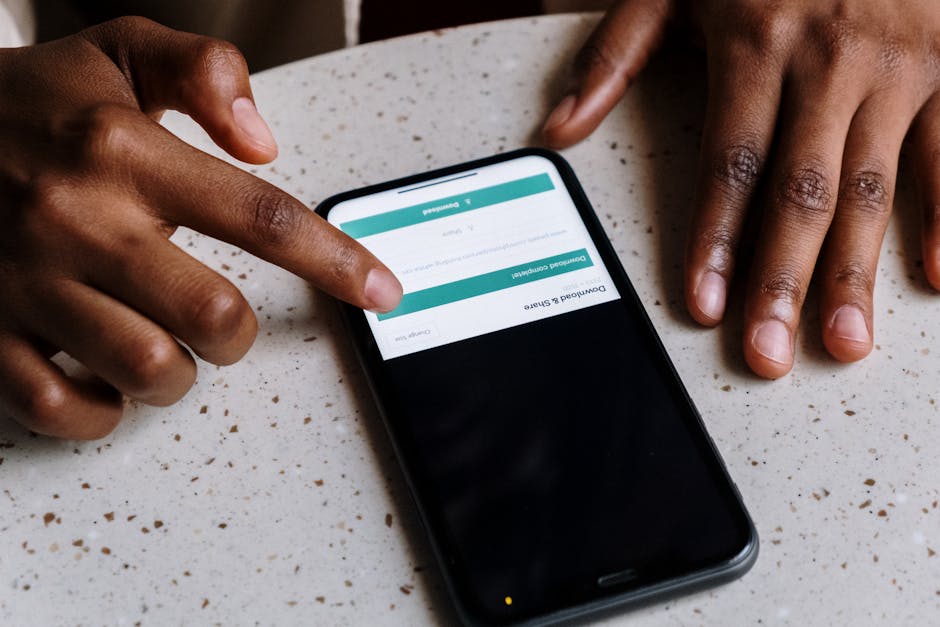
Once positioned, tap the capture button. Many apps offer an automatic capture feature that triggers when it detects stable, well-aligned edges. This is often preferable as it reduces the chance of camera shake from your finger press. If manual capture is needed, gently tap the screen. After capture, most apps will present you with a preview and options to adjust the crop. This is your chance to fine-tune the document’s boundaries, ensuring only the document itself is included and any unwanted background is removed. Pay close attention to corners and edges; they should be straight and sharp.
Refining Your Digital Documents: Post-Scan Perfection and Practical Uses
The initial capture is a critical step, but the “right way” extends to post-processing. Modern scanning apps offer powerful editing tools that can transform a good scan into an excellent one, ensuring it’s not just digitized but optimized for readability, professional appearance, and practical utility.
Enhancing Clarity and Readability with In-App Editing Tools
After capturing, your app will typically present various enhancement options. These often include:
- Color Filters: Options like “Grayscale,” “Black & White,” “Color,” or “Original.” For most text documents, “Black & White” or “Grayscale” often provides the sharpest text contrast and reduces file size. Use “Color” for documents with important color information, like charts or photos.
- Brightness & Contrast: Adjust these to make text pop against the background. Be careful not to overdo it, which can make text look pixelated or washed out.
- Sharpening: Some apps offer a sharpening tool that can subtly enhance text edges, making them clearer.
- Rotation: Correct any slight tilt in the document’s orientation.
- Noise Reduction: If your scan has a grainy appearance, this feature can smooth it out.
Experiment with these settings to find the optimal balance for each document. The goal is to make the text as crisp and readable as possible, mimicking a scan from a dedicated machine. For more advanced lighting considerations that can improve your initial capture, refer to our